DNS Deep Dive: From First Principles to Kubernetes
Understand DNS from dig traces to CoreDNS in Kubernetes. A practitioner's guide to debugging DNS in containers.
This article is translated and substantially expanded from the original Chinese version on CSDN. It adds EKS-specific guidance, updated CoreDNS plugin coverage, and a comprehensive troubleshooting section for Kubernetes 1.29+.
The Problem That Started It All
A feature we were building required calling an internal API from within a Kubernetes pod. The API was accessible via a private domain name, but DNS resolution inside the pod failed silently — requests just timed out. After tracing the issue, the fix turned out to be a small addition to our CoreDNS ConfigMap:
internal.example.com:53 {
    errors
    cache 30
    forward . 10.0.0.2
}
This told CoreDNS to forward queries for internal.example.com to our internal DNS server at 10.0.0.2 instead of using the default upstream resolver. Simple fix, but understanding why it works requires a solid grasp of how DNS works from first principles through to its Kubernetes implementation.
This post walks through that entire chain.
Part 1: DNS Fundamentals
What is DNS?
DNS (Domain Name System) does one thing: maps domain names to IP addresses. It maintains a distributed database of name-to-address mappings so that when you type example.com, your browser knows to connect to 93.184.216.34.
The key word is distributed. No single server holds all the world’s DNS records. Instead, DNS is organized as a hierarchical, delegated system — and understanding that hierarchy is essential to debugging DNS issues in any environment.
The DNS Hierarchy
DNS is a tree structure. Every domain name is read right-to-left, from the most specific label to the root:

The levels, from top to bottom:
| Level | Description | Example |
|---|---|---|
| Root Zone | The starting point for all DNS lookups. Written as a dot (.), usually omitted. Every domain technically ends with it: example.com. | . |
| Top-Level Domain (TLD) | Managed by registries. Split into generic TLDs (.com, .org, .net) and country-code TLDs (.uk, .cn, .de). | .com |
| Second-Level Domain | The domain you register with a registrar. | example.com |
| Subdomain | Created by the domain owner, no registration needed. | api.example.com |
This hierarchy matters because only the parent level knows the nameservers for the child level. The root servers know the TLD servers. The .com TLD servers know the nameservers for example.com. And example.com’s nameservers know the addresses of api.example.com. Resolution works by walking down this tree.
Dissecting a DNS Query with dig
The dig (Domain Information Groper) command is the most important tool for DNS debugging. Let’s break down its output section by section, using a real query:
$ dig example.comHeader Section
; <<>> DiG 9.18.24 <<>> example.com
;; global options: +cmd
;; Got answer:
;; ->>HEADER<<- opcode: QUERY, status: NOERROR, id: 42781
;; flags: qr rd ra; QUERY: 1, ANSWER: 1, AUTHORITY: 0, ADDITIONAL: 1
The flags tell you what happened:
- qr — this is a query response (not a query)
- rd — recursion was desired (client asked the resolver to do the full lookup)
- ra — recursion is available (the server supports recursive queries)
- aa — (not present here) would indicate an authoritative answer, meaning the response came directly from the domain’s nameserver rather than a cache
The counts (QUERY: 1, ANSWER: 1) tell you how many records are in each section.
Question Section
;; QUESTION SECTION:
;example.com.                   IN      A
This confirms what was asked: an A record (IPv4 address) for example.com. The IN stands for Internet class — virtually all DNS queries use this class.
Answer Section
;; ANSWER SECTION:
example.com.            86400   IN      A       93.184.216.34
The answer: example.com resolves to 93.184.216.34 with a TTL (Time to Live) of 86400 seconds (24 hours). Any caching resolver can store this answer for 24 hours before it needs to re-query.
For domains behind CDNs or load balancers, you’ll often see CNAME chains:
;; ANSWER SECTION:
app.example.com.     300   IN   CNAME   d1234abcdef.cloudfront.net.
d1234abcdef.cloudfront.net. 60 IN A    13.224.67.101
d1234abcdef.cloudfront.net. 60 IN A    13.224.67.42
The CNAME (Canonical Name) record is an alias — it says “to find the address for app.example.com, look up d1234abcdef.cloudfront.net instead.” The resolver then follows the chain to get the final A records.
Authority and Additional Sections
;; AUTHORITY SECTION:
example.com.            86400   IN      NS      a.iana-servers.net.

;; ADDITIONAL SECTION:
a.iana-servers.net.     86400   IN      A       199.43.135.53
The Authority section names the authoritative nameservers for the domain. The Additional section provides the IP addresses of those nameservers (a performance optimization called “glue records” so the resolver doesn’t need a separate lookup).
Statistics
;; Query time: 12 msec
;; SERVER: 127.0.0.53#53(127.0.0.53) (UDP)
;; WHEN: Wed Jan 10 09:15:22 UTC 2024
;; MSG SIZE  rcvd: 56
This tells you which DNS server handled the query (here, the local systemd-resolved stub at 127.0.0.53), how long it took, and the response size.
Walking the Hierarchy with dig +trace
The +trace flag tells dig to perform iterative resolution from the root, showing every step. This is invaluable for diagnosing delegation issues:
$ dig +trace example.comStep 1 — Root servers:
.                   518400  IN  NS  a.root-servers.net.
.                   518400  IN  NS  b.root-servers.net.
.                   518400  IN  NS  c.root-servers.net.
;; ... (13 root server clusters total)
;; Received 239 bytes from 127.0.0.53#53(127.0.0.53) in 4 ms
Your local resolver provides the list of all 13 root server clusters. These are hardcoded (the “root hints” file) and almost never change.
Step 2 — Query root, get .com TLD servers:
com.                172800  IN  NS  a.gtld-servers.net.
com.                172800  IN  NS  b.gtld-servers.net.
;; ... (13 .com TLD servers)
;; Received 1175 bytes from 170.247.170.2#53(b.root-servers.net) in 24 ms
The root server doesn’t know the answer for example.com, but it knows who manages .com — the gTLD servers. It returns a referral.
Step 3 — Query .com TLD, get example.com nameservers:
example.com.        172800  IN  NS  a.iana-servers.net.
example.com.        172800  IN  NS  b.iana-servers.net.
;; Received 170 bytes from 192.12.94.30#53(e.gtld-servers.net) in 18 ms
The .com TLD server refers us to the authoritative nameservers for example.com.
Step 4 — Query authoritative server, get final answer:
example.com.        86400   IN  A   93.184.216.34
;; Received 56 bytes from 199.43.135.53#53(a.iana-servers.net) in 32 ms
The authoritative server returns the actual IP address. End of the chain.
Recursive vs Iterative Queries
You might have noticed that dig +trace takes much longer than a plain dig. This illustrates the difference between the two query modes:
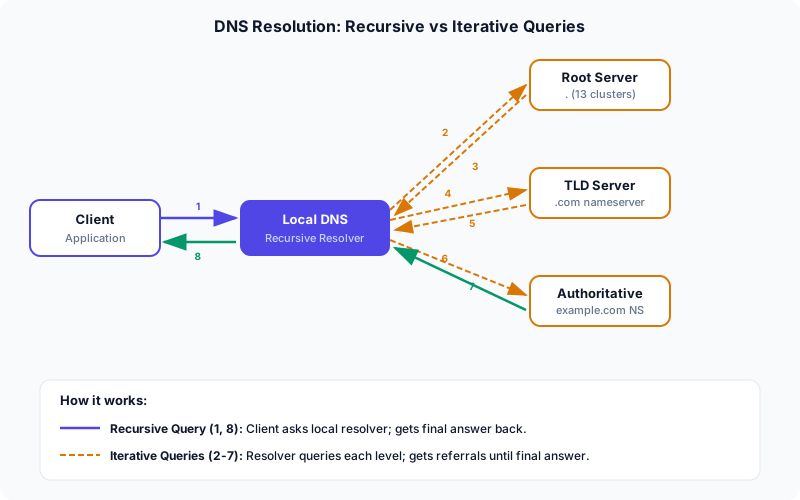
Recursive query (steps 1 and 8 in the diagram): Your application asks the local resolver “what is the IP for example.com?” and expects a final answer. The resolver does all the work and returns the result. This is what happens in normal operation — your application makes one call and gets one answer.
Iterative queries (steps 2-7): The resolver contacts each level of the hierarchy in turn, receiving referrals (“I don’t know, but ask this server”) until it reaches an authoritative answer. With dig +trace, your machine performs the iterative queries directly.
Recursive resolution is faster in practice because the resolver likely has cached responses for the root and TLD servers, and possibly for the domain itself. The +trace approach bypasses all caches, which is why it takes longer — but it reveals exactly where in the chain a problem might exist.
Part 2: DNS in Docker Containers
Before we get to Kubernetes, it helps to understand how Docker handles DNS.
How Containers Get Their DNS Configuration
By default, Docker copies the host’s /etc/resolv.conf into each container at startup. This means containers inherit whatever DNS servers the host uses. There are two ways to override this:
-
Modify the host’s
/etc/resolv.conf— affects all new containers (not running ones — they need a restart to pick up changes). -
Use the
--dnsflag at container startup:
docker run --dns 8.8.8.8 --dns 8.8.4.4 nginxThis writes the specified nameservers into the container’s /etc/resolv.conf, overriding the host defaults.
For Docker Compose, you can set it per service:
services:
  app:
    image: myapp:latest
    dns:
      - 8.8.8.8
      - 1.1.1.1
Important caveat: If the host’s /etc/resolv.conf points to 127.0.0.53 (common on Ubuntu with systemd-resolved), Docker detects this and falls back to 8.8.8.8 since loopback addresses don’t work inside containers with a separate network namespace.
Part 3: Kubernetes DNS — CoreDNS
Kubernetes takes DNS configuration to a different level. Every pod gets DNS settings injected automatically, and the cluster runs its own DNS service to handle both internal service discovery and external resolution.
The Architecture
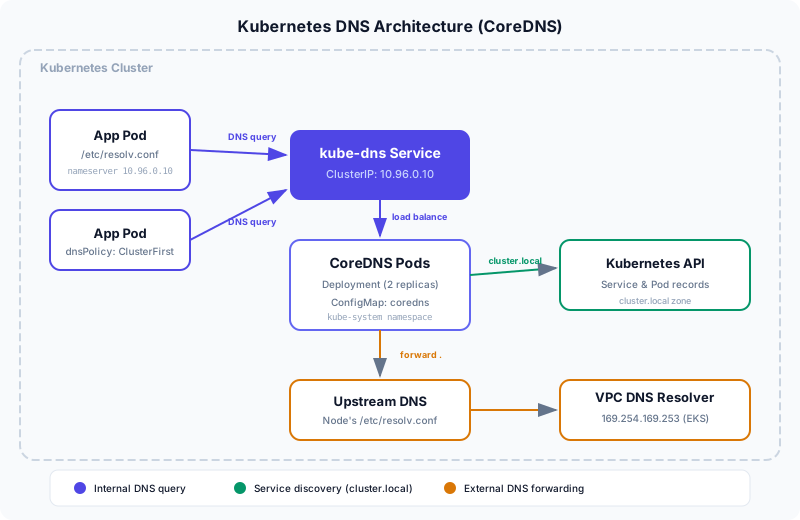
Here is how the pieces fit together:
- kubelet configures each pod’s
/etc/resolv.confto point to the cluster DNS service (typically10.96.0.10). - The kube-dns Service (a
ClusterIPservice inkube-system) load-balances across the CoreDNS pods. - CoreDNS pods (typically 2 replicas managed by a Deployment) handle all DNS queries. They know how to resolve
cluster.localnames by talking to the Kubernetes API, and forward everything else upstream. - Upstream DNS is whatever the node’s
/etc/resolv.confspecifies. On EKS, this is the Amazon VPC DNS resolver at169.254.169.253.
As of Kubernetes 1.29+, CoreDNS is the only DNS provider. The legacy kube-dns (based on dnsmasq) was removed in earlier versions. The service is still named kube-dns for backward compatibility, but it routes to CoreDNS pods.
Pod DNS Policies
Every pod has a dnsPolicy field that controls how its DNS is configured. There are four options:
ClusterFirst (the default)
DNS queries go to CoreDNS first. If the query matches cluster.local (or the configured cluster domain), CoreDNS resolves it using the Kubernetes API. Everything else is forwarded upstream. This is what you want for most workloads.
The pod’s /etc/resolv.conf looks like:
nameserver 10.96.0.10
search default.svc.cluster.local svc.cluster.local cluster.local
options ndots:5
Default
The pod inherits the DNS configuration from the node it runs on. CoreDNS is bypassed entirely. This means the pod cannot resolve Kubernetes service names like my-service.my-namespace.svc.cluster.local.
Use this only when the pod doesn’t need to talk to other Kubernetes services.
ClusterFirstWithHostNet
Required when running a pod with hostNetwork: true. Without this policy, a hostNetwork pod with ClusterFirst silently falls back to Default behavior because the pod shares the node’s network namespace. Setting ClusterFirstWithHostNet explicitly forces DNS through CoreDNS even though the pod uses the host network.
apiVersion: v1
kind: Pod
metadata:
  name: host-network-pod
spec:
  hostNetwork: true
  dnsPolicy: "ClusterFirstWithHostNet"
  containers:
    - name: app
      image: myapp:latest
None
Kubernetes does not inject any DNS settings. You must provide them yourself via dnsConfig. This gives you full control:
apiVersion: v1
kind: Pod
metadata:
  name: custom-dns-pod
spec:
  dnsPolicy: "None"
  dnsConfig:
    nameservers:
      - 10.96.0.10
      - 8.8.8.8
    searches:
      - my-namespace.svc.cluster.local
      - svc.cluster.local
    options:
      - name: ndots
        value: "2"
      - name: edns0
  containers:
    - name: app
      image: myapp:latest
The resulting /etc/resolv.conf inside the pod:
nameserver 10.96.0.10
nameserver 8.8.8.8
search my-namespace.svc.cluster.local svc.cluster.local
options ndots:2 edns0
The ndots:5 Performance Problem
The default search configuration deserves special attention. With ndots:5, any domain name with fewer than 5 dots is treated as a “relative” name, and the resolver appends each search domain before trying the name as-is.
When a pod queries api.example.com (which has 2 dots, fewer than 5):
api.example.com.default.svc.cluster.local— missapi.example.com.svc.cluster.local— missapi.example.com.cluster.local— missapi.example.com— hit
That’s 4 DNS queries for a single external domain lookup. For high-traffic services making many external calls, this multiplies DNS load significantly. Two common fixes:
Option 1: Append a trailing dot to external FQDNs in your application config:
api.example.com. # <-- trailing dot means "this is absolute, don't search"Option 2: Lower ndots in the pod spec:
dnsConfig:
  options:
    - name: ndots
      value: "2"
Setting ndots:2 means only names with fewer than 2 dots go through the search list. api.example.com (2 dots) is treated as absolute immediately. The tradeoff: short Kubernetes service names like my-service (0 dots) still go through the search list and resolve correctly.
CoreDNS Configuration Deep Dive
CoreDNS is configured via a ConfigMap in the kube-system namespace. Here is the default configuration with annotations:
apiVersion: v1
kind: ConfigMap
metadata:
  name: coredns
  namespace: kube-system
data:
  Corefile: |
    .:53 {
        errors                          # Log errors to stdout
        health {                        # Health check endpoint on :8080/health
            lameduck 5s                 # Wait 5s before shutting down (graceful)
        }
        ready                           # Readiness probe on :8181/ready
        kubernetes cluster.local in-addr.arpa ip6.arpa {
            pods insecure               # Resolve pod A records (IP-based names)
            fallthrough in-addr.arpa ip6.arpa  # Pass reverse lookups to next plugin
            ttl 30                      # Cache Kubernetes records for 30s
        }
        prometheus :9153                # Expose Prometheus metrics
        forward . /etc/resolv.conf      # Forward non-cluster queries upstream
        cache 30                        # Cache all responses for 30s
        loop                            # Detect and break forwarding loops
        reload                          # Auto-reload Corefile on ConfigMap changes
        loadbalance                     # Round-robin A/AAAA records
    }
Let’s examine the key plugins in detail.
kubernetes Plugin
This is the heart of Kubernetes DNS. It watches the Kubernetes API and answers queries for:
- Services:
my-service.my-namespace.svc.cluster.localresolves to the Service ClusterIP - Headless services: Returns individual Pod IPs instead of a ClusterIP
- Pods:
10-244-1-5.my-namespace.pod.cluster.local(whenpods insecureis set) - SRV records:
_http._tcp.my-service.my-namespace.svc.cluster.localreturns port information
forward Plugin
Forwards queries to upstream DNS servers. The . (dot) means “match all queries not handled by previous plugins.” You can specify multiple upstreams:
forward . 8.8.8.8 8.8.4.4 {
    max_concurrent 1000
    policy round_robin
}
On EKS, the node’s /etc/resolv.conf typically points to the VPC DNS resolver at 169.254.169.253, which handles Route 53 private hosted zones and standard public DNS resolution.
hosts Plugin
Allows inline host-to-IP mappings, useful for overriding specific names without an external DNS server:
hosts {
    10.0.0.50 legacy-db.internal
    10.0.0.51 legacy-api.internal
    fallthrough
}
The fallthrough directive is critical — without it, any query not matching a hosts entry returns NXDOMAIN instead of being passed to subsequent plugins.
rewrite Plugin
Rewrites queries before processing. Useful for domain aliasing or migration:
rewrite name old-service.default.svc.cluster.local new-service.default.svc.cluster.localfile Plugin
Serves DNS zones from zone files. Useful when you need to host internal DNS zones directly in CoreDNS:
file /etc/coredns/db.internal.example.com internal.example.comAdding Custom DNS Forwarding
The most common CoreDNS customization is forwarding specific domains to specific DNS servers. This is exactly the fix from the opening of this article. Here is a complete, production-ready example:
apiVersion: v1
kind: ConfigMap
metadata:
  name: coredns
  namespace: kube-system
data:
  Corefile: |
    internal.example.com:53 {
        errors
        cache 30
        forward . 10.0.0.2
    }
    corp.mycompany.net:53 {
        errors
        cache 60
        forward . 10.1.0.53 10.1.0.54 {
            policy sequential
        }
    }
    .:53 {
        errors
        health {
            lameduck 5s
        }
        ready
        kubernetes cluster.local in-addr.arpa ip6.arpa {
            pods insecure
            fallthrough in-addr.arpa ip6.arpa
            ttl 30
        }
        prometheus :9153
        forward . /etc/resolv.conf
        cache 30
        loop
        reload
        loadbalance
    }
After editing the ConfigMap, CoreDNS picks up changes automatically (thanks to the reload plugin). No restart required — but give it up to 30 seconds.
You can verify with:
kubectl rollout status deployment/coredns -n kube-system
kubectl logs -n kube-system -l k8s-app=kube-dns --tail=20
Part 4: EKS-Specific DNS Considerations
Amazon EKS has a few DNS specifics worth knowing.
VPC DNS Resolver
Every VPC has a DNS resolver at the “VPC base + 2” address (e.g., if your VPC CIDR is 10.0.0.0/16, the resolver is at 10.0.0.2). EKS nodes also see it at 169.254.169.253, a link-local address that always works regardless of VPC CIDR.
This resolver handles:
- Route 53 private hosted zones attached to the VPC
- VPC interface endpoints (e.g.,
com.amazonaws.us-east-1.s3) - Standard public DNS resolution
- Route 53 Resolver rules for forwarding to on-premises DNS
When CoreDNS forwards queries upstream, they go to this VPC resolver, which means your pods automatically get Route 53 private zone resolution without any CoreDNS configuration.
Amazon VPC CNI and DNS
The Amazon VPC CNI plugin assigns VPC IP addresses directly to pods. This means pod DNS traffic goes through the VPC network just like any other traffic — no overlay network translation. DNS packets from pods to the VPC resolver at 169.254.169.253 take the same path as DNS packets from EC2 instances.
DNS Resolution Limits
The VPC DNS resolver enforces a limit of 1024 packets per second per network interface. In clusters with many pods doing heavy DNS lookups, this can become a bottleneck. Solutions:
- NodeLocal DNSCache — runs a DNS cache on each node, reducing upstream queries
- CoreDNS autoscaling — increase replicas proportionally to cluster size
- Enable DNS caching in your application (many HTTP clients and connection pools do this already)
Part 5: Debugging DNS in Kubernetes
When DNS goes wrong in a cluster, you need a systematic approach. Here is the toolkit.
Quick DNS Check from a Pod
Spin up a debug pod with DNS tools:
kubectl run dns-debug --image=busybox:1.36 --rm -it --restart=Never -- shInside the pod:
# Check what DNS server the pod is using
cat /etc/resolv.conf

# Test Kubernetes service resolution
nslookup kubernetes.default.svc.cluster.local

# Test external resolution
nslookup example.com

# Check a specific DNS server
nslookup example.com 10.96.0.10
For more detailed queries, use a pod with dig:
kubectl run dns-debug --image=alpine/bind-tools --rm -it --restart=Never -- sh

# Inside the pod:
dig kubernetes.default.svc.cluster.local
dig +trace example.com
dig @10.96.0.10 my-service.my-namespace.svc.cluster.local
Using kubectl exec on Existing Pods
If a specific pod is having DNS issues, test from within it:
# Check the pod's DNS configuration
kubectl exec -it <pod-name> -- cat /etc/resolv.conf

# Test resolution (if the pod has nslookup/dig)
kubectl exec -it <pod-name> -- nslookup my-service.my-namespace.svc.cluster.local

# If no DNS tools available, use wget as a proxy test
kubectl exec -it <pod-name> -- wget -q -O- http://my-service.my-namespace:8080/health
Checking CoreDNS Health
# Are CoreDNS pods running?
kubectl get pods -n kube-system -l k8s-app=kube-dns

# Check CoreDNS logs for errors
kubectl logs -n kube-system -l k8s-app=kube-dns --tail=50

# Is the kube-dns service healthy?
kubectl get svc kube-dns -n kube-system

# Check endpoints (should list CoreDNS pod IPs)
kubectl get endpoints kube-dns -n kube-system

# View the current CoreDNS configuration
kubectl get configmap coredns -n kube-system -o yaml
CoreDNS Metrics
CoreDNS exposes Prometheus metrics on port 9153. Key metrics to watch:
coredns_dns_requests_total— total query count by type and zonecoredns_dns_responses_total— response count by rcode (NOERROR, NXDOMAIN, SERVFAIL)coredns_forward_requests_total— queries forwarded upstreamcoredns_cache_hits_total/coredns_cache_misses_total— cache effectivenesscoredns_panics_total— should always be 0
You can query these directly:
kubectl exec -n kube-system <coredns-pod> -- wget -q -O- http://localhost:9153/metrics | grep coredns_dns_requests_totalEnabling CoreDNS Debug Logging
For deep debugging, temporarily enable the log plugin in the CoreDNS ConfigMap:
.:53 {
    log        # <-- add this line; logs every query
    errors
    # ... rest of config
}
Warning: This generates enormous amounts of log data in production. Enable it briefly, capture what you need, then remove it.
DNS Caching Issues
If you update a DNS record but pods still see the old value:
- CoreDNS cache — default 30 seconds. Wait or temporarily set
cache 0in the ConfigMap. - Application-level caching — Java’s
InetAddresscaches DNS by default (30s for successful lookups, 10s for failures in recent JVMs). Go’s standard library respects TTLs. Node.js also caches by default since v20. - VPC DNS cache — the VPC resolver caches based on TTL. Not much you can do except wait.
- conntrack entries — stale UDP conntrack entries can cause DNS timeouts. Check with
conntrack -L -p udp --dport 53.
Troubleshooting Checklist
When you hit a DNS issue in Kubernetes, work through this list:
- Identify the symptom. Is it a timeout, NXDOMAIN, SERVFAIL, or wrong IP?
- Check the pod’s
/etc/resolv.conf. Is the nameserver correct (10.96.0.10or your cluster DNS IP)? Is the search list present? - Check the pod’s
dnsPolicy. If it’sDefault, the pod can’t resolve Kubernetes services. If it’shostNetwork: true, you needClusterFirstWithHostNet. - Verify CoreDNS is running.
kubectl get pods -n kube-system -l k8s-app=kube-dns— are all pods inRunningstate? - Check CoreDNS logs. Look for
SERVFAIL,i/o timeout, orconnection refusedmessages. - Test from a debug pod. This isolates whether the issue is with the application or with DNS itself.
- Test different query types. Can the pod resolve Kubernetes service names? External names? Both?
- Check the CoreDNS ConfigMap. Is the
forwarddirective pointing to a reachable upstream? If you have custom domain blocks, is the syntax correct? - Check network policies. If you use Calico, Cilium, or another CNI with network policies, ensure pods can reach CoreDNS on UDP/TCP port 53.
- Check if it’s an ndots issue. If external domains fail but appending a trailing dot (
.) fixes them, the search list is interfering. - Check DNS rate limits. On EKS, the VPC resolver limits queries to 1024/second/ENI. Check for
SERVFAILresponses under load. - Verify upstream DNS health. Can the CoreDNS pods themselves resolve external names?
kubectl exec -n kube-system <coredns-pod> -- nslookup example.com
Summary
DNS in Kubernetes is a multi-layered system. At the bottom is the DNS protocol itself — a hierarchical, delegated database that resolves names by walking a tree from root to leaf. Docker adds a layer by copying host DNS config into containers. Kubernetes adds another by running CoreDNS as the cluster DNS provider, handling both internal service discovery and external resolution.
Most DNS issues in Kubernetes fall into one of these categories:
- Wrong
dnsPolicy— pod can’t reach CoreDNS at all - Missing custom forward rules — internal/private domains aren’t reachable from CoreDNS
ndots:5overhead — external lookups generate unnecessary queries- Network policies blocking DNS — pods can’t reach CoreDNS on port 53
- Upstream DNS issues — CoreDNS is fine but its upstream (VPC resolver, corporate DNS) is broken
With the dig and nslookup techniques from this post, plus the systematic troubleshooting checklist, you should be able to trace any DNS issue from pod to root server and back.
References
- Kubernetes DNS for Services and Pods — official docs on DNS policies and CoreDNS
- CoreDNS Manual — full plugin reference
- Amazon EKS Best Practices: DNS — EKS-specific guidance
- DNS Query Walkthrough (RFC 1035) — the original DNS specification
- EDNS(0) Extension Mechanisms — the OPT pseudo-section explained
References
- DNS for Services and Pods — Kubernetes Documentation
- CoreDNS manual — CoreDNS
- RFC 1035: Domain Names — Implementation and Specification — IETF