Building a Knowledge Base Search Engine with FSCrawler and Elasticsearch
Index PDFs, Word docs, and scanned files into Elasticsearch with FSCrawler. Covers OCR, custom mappings, and production setup.
中文版 / Chinese Version: 本文翻译并增强自 CSDN 博客文章。阅读中文原文 →
Every organization accumulates documents — PDFs from vendors, Word reports from teams, scanned contracts, slide decks from conferences. This content holds institutional knowledge, but it is locked away in files that no search engine can reach. Google cannot index your internal file server. Your wiki search cannot read a scanned invoice.
FSCrawler solves this problem. It watches a directory (local, remote, or fed via REST API), extracts text from any document format using Apache Tika, optionally runs OCR on scanned pages with Tesseract, and indexes everything into Elasticsearch for full-text search. No custom code required for the basic pipeline — just configuration.
This article walks through setting up FSCrawler from scratch, configuring OCR for multilingual documents, building custom index mappings, integrating with the REST API from Python, and running the whole system in production. We will also cover where FSCrawler fits in a broader knowledge base architecture and how it compares to alternatives like Apache Tika Server and the Ingest Attachment plugin.
Architecture Overview
Before diving into installation, let us understand where FSCrawler fits in a knowledge base pipeline.
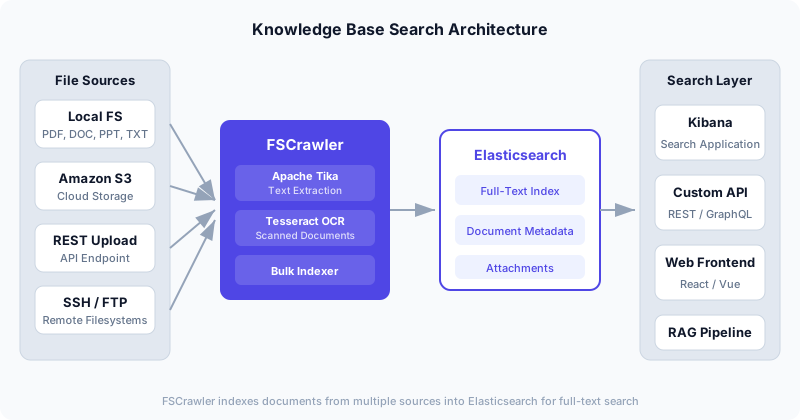
The architecture has four layers:
- File Sources — Local filesystems, mounted network drives, S3 buckets, SSH/FTP servers, or files uploaded via REST API.
- FSCrawler — The ingestion engine. It detects file formats, extracts text with Apache Tika, runs Tesseract OCR on scanned documents, and bulk-indexes everything into Elasticsearch.
- Elasticsearch — Stores the full-text content and metadata. Handles search queries with BM25 scoring, filters, highlighting, and aggregations.
- Search Layer — Kibana’s Search Application feature, a custom REST API, a web frontend, or a RAG pipeline feeding an LLM.
This separation of concerns is important. FSCrawler is not a search UI — it is an indexing pipeline. You can swap out the search layer without touching the ingestion side, or replace FSCrawler with a different indexer without changing your search application.
Document Processing Pipeline
Here is what happens to each file that FSCrawler encounters:
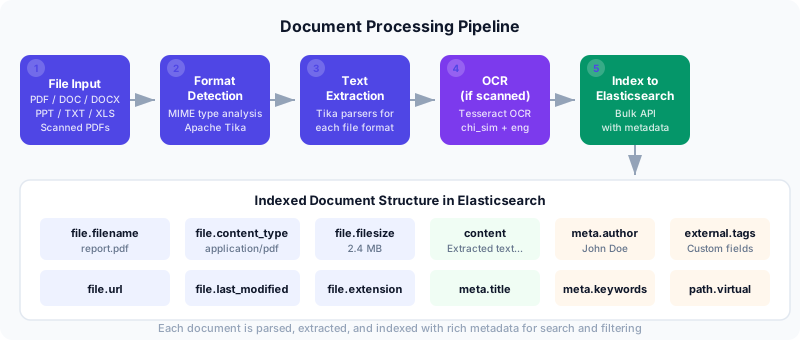
- File discovery — FSCrawler scans the configured directory at a regular interval (configurable, default 15 minutes). It detects new files, modified files, and deleted files.
- Format detection — Apache Tika identifies the MIME type of each file.
- Text extraction — Tika’s format-specific parsers extract text content. This works for PDF, DOC, DOCX, XLS, XLSX, PPT, PPTX, TXT, HTML, RTF, and dozens of other formats.
- OCR (conditional) — If the document is a scanned PDF or image, and OCR is enabled, Tesseract extracts text from the image pixels.
- Indexing — The extracted text and metadata (filename, path, size, content type, author, creation date, custom tags) are sent to Elasticsearch via the Bulk API.
Supported file formats include: PDF (text and scanned), DOC/DOCX, XLS/XLSX, PPT/PPTX, TXT, HTML, RTF, ODT, ODS, ODP, EPUB, and image files (via OCR).
Installation with Docker
FSCrawler 2.10 is the current stable release. The Docker image is the simplest way to run it — it bundles Java, Apache Tika, and Tesseract OCR.
3.1 Pull the Image
docker pull dadoonet/fscrawler:2.103.2 Create the Working Directory
mkdir -p /data/fscrawler/config/job_name
mkdir -p /data/fscrawler/documents
The directory structure:
/data/fscrawler/
├── config/
│   └── job_name/            # Job configuration directory
│       └── _settings.yaml   # Job settings (you create this)
└── documents/               # Files to be indexed
    ├── report.pdf
    ├── contract.docx
    └── presentation.pptx
3.3 Run FSCrawler
docker run -it --rm \
  --name fscrawler \
  -v /data/fscrawler/config:/root/.fscrawler \
  -v /data/fscrawler/documents:/tmp/es:ro \
dadoonet/fscrawler:2.10 fscrawler job_name/root/.fscrawleris the configuration directory. FSCrawler reads_settings.yamlfrom the job subdirectory./tmp/es:rois the document directory (mounted read-only). All files here will be crawled and indexed.job_nameis the job identifier. It also becomes the default Elasticsearch index name (job_namefor documents,job_name_folderfor folder entries).
If no _settings.yaml exists, FSCrawler creates a default one on first run. But for anything beyond a toy demo, you will want to write your own.
Configuration: _settings.yaml
This is where all the important decisions live. Here is a production-ready configuration with OCR enabled:
---
name: "job_name"
fs:
  url: "/tmp/es"
  update_rate: "5m"
  excludes:
    - "*/~*"
    - "*/.DS_Store"
    - "*/Thumbs.db"
  json_support: false
  filename_as_id: false
  add_filesize: true
  remove_deleted: true
  store_source: false
  index_content: true
  index_folders: true
  lang_detect: false
  continue_on_error: true
  follow_symlinks: false
  ocr:
    language: "chi_sim+eng"
    enabled: true
    pdf_strategy: "ocr_and_text"
elasticsearch:
  nodes:
    - url: "https://your-elasticsearch-host:9200"
  api_key: "your-base64-encoded-api-key"
  bulk_size: 100
  flush_interval: "5s"
  byte_size: "10mb"
  ssl_verification: true
  push_templates: true
Key Settings Explained
fs.update_rate — How often FSCrawler checks for file changes. Set to 1m during development, 5m to 15m in production. Lower values increase I/O load.
fs.continue_on_error — Set to true in production. A single corrupt file should not stop the entire crawl.
fs.ocr.language — Tesseract language packs. Use eng for English only, chi_sim+eng for simplified Chinese and English, or any combination of Tesseract language codes.
fs.ocr.pdf_strategy — Controls how PDFs are handled:
"ocr_and_text"— Extract embedded text and run OCR on image-based pages. Best for mixed PDFs."ocr_only"— Only run OCR, ignore embedded text. Use for scanned-only documents."no_ocr"— Skip OCR entirely. Fastest option if all your PDFs have embedded text.
Authentication — FSCrawler 2.10 deprecates username/password in favor of api_key. Generate an API key in Kibana under Stack Management > API Keys or via the Elasticsearch API:
curl -X POST "https://your-es-host:9200/_security/api_key" \
  -H "Content-Type: application/json" \
  -u elastic:your-password \
  -d '{
    "name": "fscrawler-key",
    "role_descriptors": {
      "fscrawler_role": {
        "cluster": ["monitor"],
        "index": [
          {
            "names": ["job_name*"],
            "privileges": ["create_index", "write", "read", "manage"]
          }
        ]
      }
    }
  }'
The response contains an encoded field — use that as your api_key value.
Running the Crawler
5.1 First Run
Start FSCrawler and watch the logs:
docker run -it --rm \
  --name fscrawler \
  -v /data/fscrawler/config:/root/.fscrawler \
  -v /data/fscrawler/documents:/tmp/es:ro \
  dadoonet/fscrawler:2.10 fscrawler job_name
On successful startup you will see:
INFO  [f.p.e.c.f.FsCrawlerImpl] Starting FS crawler
INFO  [f.p.e.c.f.FsCrawlerImpl] FS crawler started in watch mode.
      It will run unless you stop it with CTRL+C.
INFO  [f.p.e.c.f.c.ElasticsearchClient] Elasticsearch Client connected
      to a node running version 8.17.0
INFO  [f.p.e.c.f.FsParserAbstract] FS crawler started for [job_name]
      for [/tmp/es] every [5m]
FSCrawler automatically creates:
- A
_default/directory with default Elasticsearch index templates for versions 6, 7, and 8. - A
_status.jsonfile tracking the last run timestamp:
{
  "name": "job_name",
  "lastrun": "2024-02-21T07:55:58.851263972",
  "indexed": 28,
  "deleted": 0
}
5.2 Understanding File Sync Behavior
There are two important timing rules to understand:
- Initial sync — Place files in the document directory before starting FSCrawler for the first time. This ensures all existing files are indexed on the first crawl.
- Incremental sync — After the first run, FSCrawler only indexes files whose modification time is after the
lastruntimestamp in_status.json. If you need to force a re-index of all files, delete_status.jsonand restart.
Tip: If you add historical files after the first run and they are not being picked up, check their modification timestamps. You may need to
touchthem or delete_status.json.
Verifying in Kibana
Once FSCrawler has run, verify the indexed documents in Kibana.
6.1 Check the Index
Navigate to Stack Management > Index Management in Kibana. You should see two indices:
job_name— The document index containing extracted content and metadata.job_name_folder— The folder index (ifindex_folders: true).
6.2 Query Documents via Dev Tools
Open Dev Tools in Kibana and run a search:
GET job_name/_search
{
  "query": {
    "match": {
      "content": "quarterly revenue"
    }
  },
  "_source": ["file.filename", "file.content_type", "file.filesize", "content"],
  "highlight": {
    "fields": {
      "content": {
        "fragment_size": 150,
        "number_of_fragments": 3
      }
    }
  }
}
6.3 Create a Search Application in Kibana
Kibana 8.8+ includes a Search Application feature that gives you a ready-made search UI without writing any code:
- Go to Enterprise Search > Search Applications in the sidebar.
- Click Create and select your
job_nameindex. - Give the application a name (e.g.,
knowledge-base). - Use the built-in search UI to test queries — it shows document content, file types, and relevance scores out of the box.
This is an excellent way to demo the system to stakeholders before investing in a custom frontend.
Custom Index Mappings
FSCrawler’s default mapping works for basic search, but production systems often need custom analyzers, additional fields, or different field types. Here is how to customize the mapping.
7.1 Why Customize?
- Custom analyzers — Use language-specific analyzers (e.g.,
icu_analyzerfor CJK text) instead of the default standard analyzer. - Keyword fields — Make
file.extensionandfile.content_typekeyword fields for exact-match filtering and aggregations. - Additional fields — Add fields for business metadata (department, project, classification level).
- Disable source storage — Save disk space by not storing
_sourcefor large documents (you can still search, but cannot retrieve the original).
7.2 Provide a Custom Mapping
Create the file _default/8/_settings_folder.json (for ES 8.x) in your job configuration directory. Here is an example with a custom analyzer for English content:
{
  "settings": {
    "number_of_shards": 1,
    "number_of_replicas": 1,
    "analysis": {
      "analyzer": {
        "content_analyzer": {
          "type": "custom",
          "tokenizer": "standard",
          "filter": [
            "lowercase",
            "stop",
            "snowball",
            "asciifolding"
          ]
        }
      }
    }
  },
  "mappings": {
    "properties": {
      "content": {
        "type": "text",
        "analyzer": "content_analyzer",
        "fields": {
          "keyword": {
            "type": "keyword",
            "ignore_above": 256
          }
        }
      },
      "file": {
        "properties": {
          "content_type": { "type": "keyword" },
          "filename": {
            "type": "text",
            "fields": {
              "keyword": { "type": "keyword" }
            }
          },
          "extension": { "type": "keyword" },
          "filesize": { "type": "long" },
          "last_modified": { "type": "date" },
          "url": { "type": "keyword" }
        }
      },
      "path": {
        "properties": {
          "virtual": { "type": "keyword" },
          "real": { "type": "keyword" }
        }
      },
      "meta": {
        "properties": {
          "author": { "type": "text" },
          "title": { "type": "text" },
          "keywords": { "type": "keyword" }
        }
      },
      "external": {
        "type": "object",
        "dynamic": true
      }
    }
  }
}
Set push_templates: true in _settings.yaml to have FSCrawler push this mapping to Elasticsearch on startup.
7.3 Mapping for CJK (Chinese, Japanese, Korean) Content
If your documents contain CJK text, use the ICU analysis plugin:
# Install the ICU plugin on your Elasticsearch cluster
bin/elasticsearch-plugin install analysis-icu
Then use icu_analyzer in your mapping:
{
  "content": {
    "type": "text",
    "analyzer": "icu_analyzer"
  }
}
REST API for File Upload
FSCrawler includes a built-in REST API that lets you upload files programmatically — useful when files come from a web application, a CI pipeline, or an S3 event trigger.
8.1 Enable the REST API
Add --rest when starting FSCrawler:
docker run -it --rm \
  --name fscrawler \
  -p 8080:8080 \
  -v /data/fscrawler/config:/root/.fscrawler \
  -v /data/fscrawler/documents:/tmp/es:ro \
  dadoonet/fscrawler:2.10 fscrawler job_name --rest
8.2 Check Status
curl http://localhost:8080/fscrawlerResponse:
{
  "ok": true,
  "version": "2.10",
  "elasticsearch": "8.17.0",
  "settings": {
    "name": "job_name",
    "fs": {
      "url": "/tmp/es",
      "update_rate": "5m"
    }
  }
}
8.3 Upload a File
# Simple upload
curl -F "file=@report.pdf" "http://localhost:8080/fscrawler/_document"
Response:
{
  "ok": true,
  "filename": "report.pdf",
  "url": "https://your-es-host:9200/job_name/_doc/abc123def456"
}
8.4 Upload with Custom Tags
Create a tags.json file with business metadata:
{
  "external": {
    "department": "engineering",
    "project": "knowledge-base",
    "classification": "internal",
    "uploaded_by": "api-service"
  }
}
Upload with tags:
curl -F "file=@report.pdf" -F "tags=@tags.json" \
  "http://localhost:8080/fscrawler/_document"
The external object is merged into the Elasticsearch document, making it searchable and filterable.
8.5 Python Client
Here is a production-ready Python client for the FSCrawler REST API:
"""FSCrawler REST API client for programmatic document upload."""

import json
import logging
from pathlib import Path

import requests

logger = logging.getLogger(__name__)


class FSCrawlerClient:
    """Client for the FSCrawler REST API."""

    def __init__(self, base_url: str = "http://localhost:8080"):
        self.base_url = base_url.rstrip("/")
        self.session = requests.Session()

    def health_check(self) -> dict:
        """Check FSCrawler status and connectivity."""
        resp = self.session.get(f"{self.base_url}/fscrawler")
        resp.raise_for_status()
        return resp.json()

    def upload_document(
        self,
        file_path: str | Path,
        tags: dict | None = None,
        index: str | None = None,
    ) -> dict:
        """
        Upload a document to FSCrawler for indexing.

        Args:
            file_path: Path to the file to upload.
            tags: Optional dict of custom metadata (stored under 'external').
            index: Optional index name override (defaults to job name).

        Returns:
            Response dict with 'ok', 'filename', and 'url' fields.
        """
        file_path = Path(file_path)
        if not file_path.exists():
            raise FileNotFoundError(f"File not found: {file_path}")

        url = f"{self.base_url}/fscrawler/_document"
        if index:
            url += f"?index={index}"

        files = {"file": (file_path.name, open(file_path, "rb"))}

        if tags:
            tags_content = json.dumps({"external": tags})
            files["tags"] = ("tags.json", tags_content, "application/json")

        resp = self.session.post(url, files=files)
        resp.raise_for_status()

        result = resp.json()
        if not result.get("ok"):
            raise RuntimeError(f"Upload failed: {result}")

        logger.info("Uploaded %s -> %s", file_path.name, result.get("url"))
        return result

    def upload_directory(
        self,
        directory: str | Path,
        extensions: list[str] | None = None,
        tags: dict | None = None,
        recursive: bool = True,
    ) -> list[dict]:
        """
        Upload all matching files in a directory.

        Args:
            directory: Path to the directory.
            extensions: File extensions to include (e.g., ['.pdf', '.docx']).
                        If None, uploads all files.
            tags: Optional metadata applied to all files.
            recursive: Whether to search subdirectories.

        Returns:
            List of upload results.
        """
        directory = Path(directory)
        pattern = "**/*" if recursive else "*"
        results = []

        for file_path in sorted(directory.glob(pattern)):
            if not file_path.is_file():
                continue
            if extensions and file_path.suffix.lower() not in extensions:
                continue

            try:
                result = self.upload_document(file_path, tags=tags)
                results.append(result)
            except Exception as e:
                logger.error("Failed to upload %s: %s", file_path, e)
                results.append({"ok": False, "filename": file_path.name, "error": str(e)})

        return results


# ── Usage example ────────────────────────────────────────────
if __name__ == "__main__":
    client = FSCrawlerClient("http://localhost:8080")

    # Check connectivity
    status = client.health_check()
    print(f"FSCrawler {status['version']} connected to ES {status['elasticsearch']}")

    # Upload a single file with tags
    result = client.upload_document(
        "quarterly-report.pdf",
        tags={
            "department": "finance",
            "quarter": "Q4-2024",
            "classification": "confidential",
        },
    )
    print(f"Indexed: {result['filename']} -> {result['url']}")

    # Batch upload a directory
    results = client.upload_directory(
        "/data/incoming/reports/",
        extensions=[".pdf", ".docx", ".xlsx"],
        tags={"source": "automated-upload", "batch": "2024-02-20"},
    )
    print(f"Uploaded {sum(1 for r in results if r['ok'])} / {len(results)} files")
Performance Tuning
FSCrawler’s default settings are conservative. For large document sets (thousands of files), tuning is essential.
9.1 Elasticsearch Bulk Settings
These settings in _settings.yaml control how FSCrawler sends data to Elasticsearch:
| Setting | Default | Recommended | Description |
|---|---|---|---|
bulk_size | 100 | 100-500 | Documents per bulk request |
flush_interval | "5s" | "5s"-"30s" | Max time between flushes |
byte_size | "10mb" | "10mb"-"50mb" | Max bulk request size in bytes |
elasticsearch:
  bulk_size: 200
  flush_interval: "10s"
  byte_size: "25mb"
Increasing bulk_size reduces the number of HTTP requests to Elasticsearch but increases memory usage. For large files (multi-MB PDFs), keep bulk_size lower to avoid exceeding byte_size.
9.2 OCR Performance
OCR is the slowest part of the pipeline — by an order of magnitude. A single scanned page can take 2-5 seconds to OCR, compared to milliseconds for text extraction.
Strategies to improve OCR performance:
- Disable OCR if you do not need it. Set
ocr.enabled: falseif all your documents have embedded text. - Use
ocr_and_textstrategy instead ofocr_only. This way, pages with embedded text are extracted quickly, and only image-based pages trigger OCR. - Limit OCR languages. Each additional language pack increases processing time. Use
enginstead ofchi_sim+eng+jpn+korunless you truly need all of them. - Allocate more memory to the Docker container for OCR-heavy workloads:
docker run -it --rm \
  --memory=4g \
  -e JAVA_OPTS="-Xmx2g" \
  -v /data/fscrawler/config:/root/.fscrawler \
  -v /data/fscrawler/documents:/tmp/es:ro \
  dadoonet/fscrawler:2.10 fscrawler job_name
9.3 Crawl Frequency vs. Resource Usage
The update_rate setting controls how often FSCrawler scans the file directory. Setting it too low (e.g., 10s) causes constant filesystem scanning. Setting it too high (e.g., 1h) delays new document availability.
Guidelines:
- Development:
1m - Active document ingestion:
5m - Stable knowledge base with occasional updates:
15m-1h - Combined with REST API for real-time uploads:
30m-1h(the REST API indexes immediately; the directory scan is just a safety net)
Production Deployment
10.1 Run as a Daemon
In production, run FSCrawler as a detached Docker container with automatic restart:
docker run -d \
  --name fscrawler \
  --restart unless-stopped \
  --memory=4g \
  -e JAVA_OPTS="-Xmx2g" \
  -p 8080:8080 \
  -v /data/fscrawler/config:/root/.fscrawler \
  -v /data/fscrawler/documents:/tmp/es:ro \
  dadoonet/fscrawler:2.10 fscrawler job_name --rest
Or use Docker Compose:
# docker-compose.yml
services:
  fscrawler:
    image: dadoonet/fscrawler:2.10
    container_name: fscrawler
    restart: unless-stopped
    mem_limit: 4g
    environment:
      - JAVA_OPTS=-Xmx2g
    ports:
      - "8080:8080"
    volumes:
      - ./config:/root/.fscrawler
      - ./documents:/tmp/es:ro
    command: fscrawler job_name --rest
    healthcheck:
      test: ["CMD", "curl", "-f", "http://localhost:8080/fscrawler"]
      interval: 30s
      timeout: 10s
      retries: 3
      start_period: 60s
10.2 Health Checks and Monitoring
Use the REST API health endpoint for monitoring:
# Simple health check for load balancers or container orchestrators
curl -sf http://localhost:8080/fscrawler | jq '.ok'
For more comprehensive monitoring, track these Elasticsearch metrics:
# Document count in the index
curl -s "https://your-es-host:9200/job_name/_count" | jq '.count'

# Index size on disk
curl -s "https://your-es-host:9200/job_name/_stats/store" | jq '.indices.job_name.total.store.size_in_bytes'

# Check _status.json for last run time
cat /data/fscrawler/config/job_name/_status.json | jq '.lastrun'
10.3 Handling Large File Sets
For initial indexing of tens of thousands of files:
- Stage files before starting FSCrawler. Place all files in the document directory first, then start the crawler. This avoids the overhead of incremental scanning during bulk ingestion.
- Increase Elasticsearch refresh interval during bulk load:
# Before bulk load — reduce indexing overhead
curl -X PUT "https://your-es-host:9200/job_name/_settings" \
  -H "Content-Type: application/json" \
  -d '{"index": {"refresh_interval": "60s"}}'

# After bulk load — restore normal refresh
curl -X PUT "https://your-es-host:9200/job_name/_settings" \
  -H "Content-Type: application/json" \
-d '{"index": {"refresh_interval": "1s"}}'- Use multiple FSCrawler jobs for different directories. Each job runs independently and can be configured for different file types or OCR settings.
10.4 Using Amazon OpenSearch
If you prefer a managed service, FSCrawler works with Amazon OpenSearch (the AWS fork of Elasticsearch). The configuration is nearly identical:
elasticsearch:
  nodes:
    - url: "https://your-domain.us-east-1.es.amazonaws.com"
  api_key: "your-opensearch-api-key"
  ssl_verification: true
  push_templates: true
For OpenSearch Serverless collections, you will need to use IAM-based authentication. Configure the FSCrawler container with AWS credentials via environment variables or an IAM role, and use the appropriate OpenSearch endpoint.
Tool Comparison
FSCrawler is not the only way to index documents into Elasticsearch. Here is how it compares to the alternatives:
| Feature | FSCrawler | Tika Server | Ingest Attachment | Unstructured.io |
|---|---|---|---|---|
| Deployment | Standalone (Docker) | Standalone (Docker) | ES plugin | Standalone (Docker) |
| File watching | Built-in directory watch | No (API only) | No (API only) | No (API only) |
| REST upload API | Yes | Yes | Via ES Ingest API | Yes |
| OCR support | Tesseract (built-in) | Tesseract (built-in) | No | Tesseract + PaddleOCR |
| Elasticsearch integration | Native (direct indexing) | None (returns text) | Native (ingest pipeline) | Via connectors |
| Format coverage | 1000+ (via Tika) | 1000+ (via Tika) | Limited subset | 25+ formats |
| Custom metadata/tags | Yes (external object) | No | Yes (ingest pipeline) | Yes |
| Incremental sync | Yes (timestamp-based) | No | No | No |
| Setup complexity | Low (config file) | Low (API calls) | Medium (pipeline config) | Medium (Python SDK) |
| Best for | File system indexing | Text extraction only | Small-scale, in-cluster | AI/ML pipelines, RAG |
When to choose FSCrawler:
- You need to index a directory of files and keep the index in sync as files change.
- You want a turnkey solution with minimal code — just Docker and a YAML config.
- You need OCR support for scanned documents.
When to choose alternatives:
- Tika Server — You only need text extraction, not Elasticsearch indexing. Your application handles indexing itself.
- Ingest Attachment Plugin — You are already using Elasticsearch ingest pipelines and want to keep everything in-cluster. Note: OCR is not supported.
- Unstructured.io — You are building a RAG pipeline and need structured document parsing (tables, headers, sections) rather than flat text extraction.
Integrating with a RAG Pipeline
FSCrawler and a RAG system complement each other well. FSCrawler handles the “hard part” of document ingestion — format detection, text extraction, OCR — and Elasticsearch stores the results. Your RAG pipeline then queries Elasticsearch to retrieve relevant context for the LLM.
A typical integration pattern:
from elasticsearch import Elasticsearch

es = Elasticsearch(
    "https://your-es-host:9200",
    api_key="your-api-key",
)


def search_knowledge_base(query: str, top_k: int = 5) -> list[dict]:
    """Search the FSCrawler-indexed knowledge base."""
    results = es.search(
        index="job_name",
        body={
            "query": {
                "multi_match": {
                    "query": query,
                    "fields": ["content", "file.filename^2", "meta.title^3"],
                    "type": "best_fields",
                }
            },
            "size": top_k,
            "_source": ["content", "file.filename", "file.content_type", "meta.title"],
            "highlight": {
                "fields": {"content": {"fragment_size": 300, "number_of_fragments": 3}}
            },
        },
    )

    documents = []
    for hit in results["hits"]["hits"]:
        doc = {
            "filename": hit["_source"].get("file", {}).get("filename"),
            "content_type": hit["_source"].get("file", {}).get("content_type"),
            "title": hit["_source"].get("meta", {}).get("title"),
            "score": hit["_score"],
            "content": hit["_source"].get("content", ""),
            "highlights": hit.get("highlight", {}).get("content", []),
        }
        documents.append(doc)

    return documents


# Use in a RAG pipeline
context_docs = search_knowledge_base("employee onboarding policy")
context = "\n\n---\n\n".join(
    f"[{doc['filename']}]\n{doc['content'][:2000]}" for doc in context_docs
)
# Feed 'context' into your LLM prompt...
This pattern gives you the best of both worlds: FSCrawler handles the messy work of parsing 50 different file formats, and your RAG pipeline gets clean text from Elasticsearch with a simple query.
Conclusion
FSCrawler is one of those tools that does one thing well: it takes files in dozens of formats, extracts their text content (including OCR for scanned documents), and indexes everything into Elasticsearch. No custom code, no complex pipeline orchestration — just a Docker container and a YAML configuration file.
The key takeaways:
- Start with Docker and a simple
_settings.yaml. Get documents flowing into Elasticsearch before optimizing anything. - Enable OCR only if you need it. It is the single biggest performance bottleneck. Use
ocr_and_textstrategy for mixed document sets. - Use API keys instead of username/password. The
username/passwordfields are deprecated in FSCrawler 2.10. - Customize your index mapping for production. The default mapping works, but custom analyzers and keyword fields make a significant difference for search quality.
- Use the REST API for programmatic uploads. Combined with the directory watcher, this covers both batch and real-time ingestion.
- Monitor with health checks and track the
_status.jsonfile to catch crawl failures early.
For teams building internal knowledge bases, document search systems, or the retrieval layer of a RAG pipeline, FSCrawler is a solid foundation that avoids the need to write custom document parsing code.
References
References
- FSCrawler documentation — Read the Docs
- Elasticsearch reference — Elastic