How to Build API Monitoring with Grafana and Elasticsearch
Set up production API monitoring from scratch — Elasticsearch data source, Lucene queries, Grafana panels, and alerting rules.
中文版 / Chinese Version: 本文最初发表于 CSDN。阅读中文原文 →
Your API is running in production. Users are hitting endpoints, services are calling each other, and everything looks fine — until it isn’t. A payment endpoint starts returning 500s. Latency on the search route creeps from 200ms to 3 seconds. A downstream dependency goes down and your error rate spikes from 0.1% to 12%. Without monitoring, you find out about these problems from angry users. With the right dashboard, you find out in minutes and often before users even notice.
This article walks through building a complete API monitoring dashboard using Grafana 11.x with Elasticsearch as the data source. We’ll cover the architecture, data source configuration, six essential dashboard panels with real query syntax, alerting with Grafana’s Unified Alerting system, and production tips that make the difference between a dashboard people glance at and one that actually prevents outages.
Why API Monitoring Matters
Before diving into the tooling, it’s worth grounding the discussion in the framework that modern operations teams use to think about reliability: SLOs, SLIs, and error budgets.
Service Level Indicators (SLIs) are the metrics you actually measure — request latency, error rate, throughput. Service Level Objectives (SLOs) are the targets you set for those metrics — “99.5% of requests complete successfully” or “P95 latency stays below 300ms.” The error budget is the gap between perfection and your SLO: if your SLO is 99.5% success rate, you have a 0.5% error budget per measurement window.
The dashboard we’re building in this article directly measures three of the four golden signals defined in the Google SRE book:
- Latency — how long requests take (P50, P95, P99)
- Traffic — how many requests per minute are flowing through the system
- Errors — what percentage of requests are failing
The fourth signal, saturation, typically comes from infrastructure metrics (CPU, memory, disk) rather than access logs. Together, these four signals give you a comprehensive picture of API health.
The practical value is immediate: when an alert fires at 3 AM because the error rate on /api/v1/payments exceeded 2%, the on-call engineer opens the dashboard, sees that the spike started exactly when a new deployment rolled out, correlates with the latency increase on the same endpoint, and has enough context to either roll back or investigate the specific failure mode — all within minutes.
Architecture
The monitoring pipeline is straightforward: API traffic generates access logs, those logs flow into Elasticsearch, and Grafana queries Elasticsearch to power dashboards and alerts.
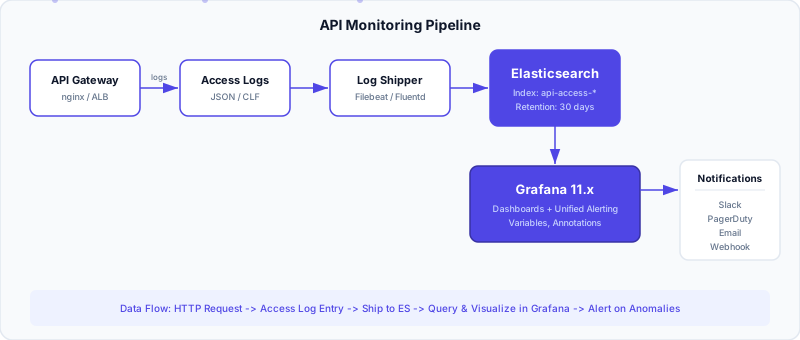
Here is what each component does:
API Gateway (nginx, AWS ALB, Kong, etc.) serves as the entry point for all API traffic. The gateway writes structured access logs for every request, including the HTTP method, path, status code, response time, client IP, and request size. The key decision here is log format — use JSON if possible, as it eliminates the need for complex parsing rules downstream.
A typical nginx JSON log configuration looks like this:
log_format json_combined escape=json
  '{'
    '"timestamp":"$time_iso8601",'
    '"method":"$request_method",'
    '"path":"$uri",'
    '"status":$status,'
    '"response_time":$request_time,'
    '"bytes_sent":$bytes_sent,'
    '"remote_addr":"$remote_addr",'
    '"user_agent":"$http_user_agent",'
    '"upstream_response_time":"$upstream_response_time",'
    '"request_id":"$request_id"'
  '}';

access_log /var/log/nginx/api_access.log json_combined;
Log Shipper (Filebeat or Fluentd) reads the log files, parses them, and sends them to Elasticsearch. Filebeat is the lighter-weight option and integrates natively with the Elastic Stack. Fluentd is more flexible if you need to route logs to multiple destinations.
A minimal Filebeat configuration for shipping nginx JSON logs:
filebeat.inputs:
  - type: filestream
    id: api-access-logs
    paths:
      - /var/log/nginx/api_access.log
    parsers:
      - ndjson:
          target: ""
          add_error_key: true

output.elasticsearch:
  hosts: ["https://elasticsearch:9200"]
  index: "api-access-%{+yyyy.MM.dd}"
  username: "${ES_USERNAME}"
  password: "${ES_PASSWORD}"

setup.ilm.enabled: true
setup.ilm.rollover_alias: "api-access"
setup.ilm.pattern: "{now/d}-000001"
Elasticsearch stores the access logs and provides the aggregation engine that Grafana queries. Each access log entry becomes a document in a time-series index (e.g., api-access-2023.01.08). Elasticsearch’s aggregation framework — terms, date histogram, percentiles, filters — is what makes it possible to compute metrics like “P99 latency grouped by endpoint for the last hour” in real time.
Grafana queries Elasticsearch to render dashboard panels and evaluate alert rules. Grafana’s Elasticsearch data source plugin speaks the Elasticsearch query DSL natively, so you configure queries using Lucene syntax and aggregation builders in the panel editor.
Setting Up Grafana with Elasticsearch
3.1 Adding the Elasticsearch Data Source
In Grafana 11.x, navigate to Connections > Data sources > Add data source and select Elasticsearch. The key configuration fields:
| Field | Value | Notes |
|---|---|---|
| URL | https://elasticsearch:9200 | Use HTTPS in production |
| Authentication | Basic Auth or API Key | Never leave authentication disabled |
| Index name | api-access-* | Wildcard matches daily indices |
| Time field | timestamp | Must match your log’s timestamp field |
| Max concurrent shard requests | 5 | Prevents overloading ES with dashboard queries |
| Min time interval | 1m | Matches your log granularity |
If you’re using Amazon OpenSearch Service, the setup is identical — Grafana’s Elasticsearch plugin is compatible with OpenSearch. Just point the URL to your OpenSearch domain endpoint and use IAM-based authentication via the Sigv4 auth option.
3.2 Index Pattern and Mapping Considerations
For the dashboard queries to work correctly, your Elasticsearch index mapping needs a few things:
- The timestamp field must be of type
date(nottextorkeyword). - The status field should be
integerorkeyword. If it’stext, aggregations won’t work. - The response_time field must be
floatordoublefor percentile calculations. - The path field should be
keyword(nottext) so that terms aggregations return exact paths rather than tokenized fragments.
You can verify the mapping with:
curl -s "https://elasticsearch:9200/api-access-*/_mapping" | jq '.[] .mappings.properties | {timestamp, status, response_time, path}'If fields are incorrectly mapped as text, create an index template that enforces the correct types:
PUT _index_template/api-access
{
  "index_patterns": ["api-access-*"],
  "template": {
    "mappings": {
      "properties": {
        "timestamp": { "type": "date" },
        "method": { "type": "keyword" },
        "path": { "type": "keyword" },
        "status": { "type": "integer" },
        "response_time": { "type": "float" },
        "bytes_sent": { "type": "long" },
        "remote_addr": { "type": "ip" },
        "user_agent": { "type": "text" },
        "request_id": { "type": "keyword" }
      }
    }
  }
}
Building the Dashboard Panels
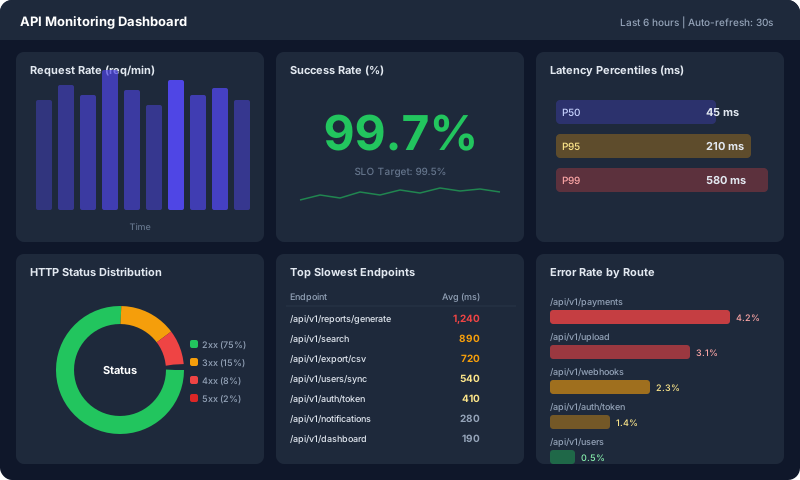
The dashboard is organized in two rows of three panels each. The top row shows high-level health metrics (rate, success rate, latency), and the bottom row shows detailed breakdowns (status distribution, slowest endpoints, errors by route).
4.1 Request Rate (requests/min)
This panel shows how many requests per minute are flowing through the API, broken down by status code class.
Panel type: Time series
Elasticsearch query configuration:
- Metric: Count
- Group by: Date Histogram on
timestamp, interval1m - Group by (second): Terms on
status(to split by status code)
In the Grafana panel editor, the query looks like this:
Query: *
Metric: Count
Group by: Date Histogram (timestamp) — Interval: 1m
         Terms (status) — Order: Top, Size: 10
For a cleaner view that groups by status code class (2xx, 3xx, 4xx, 5xx) rather than individual codes, use a Lucene query approach with multiple queries:
- Query A:
status:[200 TO 299]— label: “2xx” - Query B:
status:[300 TO 399]— label: “3xx” - Query C:
status:[400 TO 499]— label: “4xx” - Query D:
status:[500 TO 599]— label: “5xx”
Each query uses Count as the metric and a Date Histogram on timestamp with a 1m interval.
4.2 Success Rate (%)
The success rate is the percentage of requests that return a 2xx status code. This is your primary SLI for availability.
Panel type: Stat (for the big number) or Time series (for trend)
Computing a ratio in Grafana with Elasticsearch requires a bit of setup. There are two approaches:
Approach 1: Using Bucket Script (recommended for Grafana 11.x)
Configure a single Elasticsearch query with:
Metric A: Count (all requests)
Metric B: Count with Lucene query filter: status:[200 TO 299]
Pipeline: Bucket Script
  Expression: params.B / params.A * 100
Group by: Date Histogram (timestamp) — Interval: 1m
The Bucket Script pipeline aggregation lets you compute (successful_requests / total_requests) * 100 at each time bucket.
Approach 2: Using Grafana Transformations
Create two queries — one for total requests (Count, no filter) and one for successful requests (Count, filter status:[200 TO 299]). Then add a Transform > Calculate field step with the operation Query B / Query A * 100.
For the Stat panel showing the big number, set the Value options > Calculation to “Last” or “Mean” depending on whether you want the current or average success rate. Set thresholds at your SLO boundaries:
{
  "thresholds": {
    "steps": [
      { "color": "red", "value": null },
      { "color": "orange", "value": 99 },
      { "color": "green", "value": 99.5 }
    ]
  }
}
4.3 P50/P95/P99 Latency
Latency percentiles tell you how fast requests are for the median user (P50), the tail (P95), and the extreme tail (P99). The P99 is often where problems hide — the endpoint might feel fast for most users but be painfully slow for 1%.
Panel type: Time series
Elasticsearch query configuration:
Query: *
Metric: Percentiles on field "response_time"
  Percentile values: 50, 95, 99
Group by: Date Histogram (timestamp) — Interval: 1m
Elasticsearch’s percentiles aggregation uses the t-digest algorithm, which is approximate but memory-efficient — suitable for high-cardinality time-series data.
To add a visual SLO reference line (e.g., “P95 must stay below 300ms”), use Dashboard > Annotations > Add annotation query or simply add a threshold line in the panel’s Thresholds configuration set to 300 with a red color.
4.4 HTTP Status Code Distribution
A pie chart showing the overall distribution of HTTP status codes helps you spot unusual patterns at a glance — for example, a sudden spike in 429 (rate limiting) or 401 (auth failures).
Panel type: Pie chart
Elasticsearch query configuration:
Query: *
Metric: Count
Group by: Terms on "status" — Order: Top, Size: 20
Override colors for semantic meaning:
| Status Code Range | Color |
|---|---|
| 200-299 | Green |
| 301, 302, 304 | Blue |
| 400-499 | Orange |
| 500-599 | Red |
4.5 Top Slowest Endpoints
This panel answers the question: “Which endpoints are the slowest right now?” It’s invaluable for identifying performance regressions after deployments.
Panel type: Table
Elasticsearch query configuration:
Query: *
Metric: Average on field "response_time"
Group by: Terms on "path" — Order by: Average response_time (desc), Size: 15
To make the table more useful, add additional metrics:
Metric A: Average on "response_time" (alias: "Avg Latency (ms)")
Metric B: Percentiles on "response_time", value: 99 (alias: "P99 (ms)")
Metric C: Count (alias: "Request Count")
Group by: Terms on "path" — Order by: Metric A desc, Size: 15
This gives you the average latency, P99 latency, and request volume for each endpoint — enough context to distinguish between “this endpoint is slow because of one outlier” and “this endpoint is consistently slow.”
4.6 Error Rate by Endpoint
This panel shows which specific endpoints have the highest error rates, helping you prioritize investigation.
Panel type: Bar gauge (horizontal)
Elasticsearch query configuration:
This requires a two-step aggregation. First, compute the error count and total count per endpoint, then calculate the ratio:
Query A: status:[400 TO 599]
  Metric: Count
  Group by: Terms on "path" — Order: Top, Size: 10

Query B: *
  Metric: Count
  Group by: Terms on "path" — Order: Top, Size: 10
Then apply a Transform > Join by field on path, followed by Transform > Add field from calculation with the formula Query A / Query B * 100. Alternatively, use the Bucket Script approach within a single query:
Metric A: Count (all requests per path)
Metric B: Count with inline filter: status:[400 TO 599]
Pipeline: Bucket Script — Expression: params.B / params.A * 100
Group by: Terms on "path" — Order by: Bucket Script desc, Size: 10
Grafana Alerting
Grafana 9+ replaced the legacy per-panel alerting system with Unified Alerting, which is a standalone alerting engine that supports multi-dimensional evaluation, a dedicated rule editor, and a complete notification pipeline. If you’re still on the old system, migrating is worth it — Unified Alerting is significantly more capable.
5.1 Alert Rules
Alert rules in Grafana evaluate a query expression on a schedule and fire when conditions are met. Here’s an example alert rule for high error rate:
# Alert: API Error Rate > 2%
apiVersion: 1
groups:
  - orgId: 1
    name: api-monitoring
    folder: API Alerts
    interval: 1m
    rules:
      - uid: api-error-rate-high
        title: "API Error Rate Exceeds 2%"
        condition: C
        data:
          - refId: A
            relativeTimeRange:
              from: 300  # last 5 minutes
              to: 0
            datasourceUid: elasticsearch-ds
            model:
              query: "*"
              metrics:
                - type: count
                  id: "1"
              bucketAggs:
                - type: date_histogram
                  field: timestamp
                  id: "2"
                  settings:
                    interval: 1m
          - refId: B
            relativeTimeRange:
              from: 300
              to: 0
            datasourceUid: elasticsearch-ds
            model:
              query: "status:[400 TO 599]"
              metrics:
                - type: count
                  id: "1"
              bucketAggs:
                - type: date_histogram
                  field: timestamp
                  id: "2"
                  settings:
                    interval: 1m
          - refId: C
            datasourceUid: __expr__
            model:
              type: math
              expression: "$B / $A * 100"
              conditions:
                - evaluator:
                    type: gt
                    params: [2]
        for: 5m  # must breach for 5 consecutive minutes
        labels:
          severity: critical
          team: platform
        annotations:
          summary: "API error rate is {{ $value }}%, exceeding 2% threshold"
          dashboard_url: "https://grafana.example.com/d/api-monitoring"
For latency alerts, a similar pattern works. Monitor when P99 latency exceeds your SLO:
      - uid: api-p99-latency-high
        title: "API P99 Latency Exceeds 500ms"
        condition: B
        data:
          - refId: A
            datasourceUid: elasticsearch-ds
            model:
              query: "*"
              metrics:
                - type: percentiles
                  field: response_time
                  id: "1"
                  settings:
                    percents: ["99"]
              bucketAggs:
                - type: date_histogram
                  field: timestamp
                  id: "2"
                  settings:
                    interval: 1m
          - refId: B
            datasourceUid: __expr__
            model:
              type: threshold
              expression: A
              conditions:
                - evaluator:
                    type: gt
                    params: [500]
        for: 3m
        labels:
          severity: warning
          team: platform
5.2 Contact Points
Contact points define where alerts are sent. Grafana supports Slack, PagerDuty, email, Microsoft Teams, Opsgenie, webhook, and many more.
A Slack contact point configuration:
apiVersion: 1
contactPoints:
  - orgId: 1
    name: platform-team-slack
    receivers:
      - uid: slack-platform
        type: slack
        settings:
          recipient: "#platform-alerts"
          token: "${SLACK_BOT_TOKEN}"
          title: |
            {{ `{{ .Status | toUpper }}` }} {{ `{{ .CommonLabels.alertname }}` }}
          text: |
            {{ `{{ range .Alerts }}` }}
            *{{ `{{ .Labels.alertname }}` }}*
            {{ `{{ .Annotations.summary }}` }}
            Dashboard: {{ `{{ .Annotations.dashboard_url }}` }}
            {{ `{{ end }}` }}
For PagerDuty integration (critical alerts that need to page an on-call engineer):
      - uid: pagerduty-platform
        type: pagerduty
        settings:
          integrationKey: "${PAGERDUTY_INTEGRATION_KEY}"
          severity: "{{ `{{ .CommonLabels.severity }}` }}"
          class: "api-monitoring"
5.3 Notification Policies and Routing
Notification policies route alerts to the right contact points based on labels. This is where you implement the logic “critical alerts go to PagerDuty, warnings go to Slack”:
apiVersion: 1
policies:
  - orgId: 1
    receiver: platform-team-slack  # default receiver
    group_by: ["alertname", "team"]
    group_wait: 30s
    group_interval: 5m
    repeat_interval: 4h
    routes:
      - receiver: pagerduty-platform
        matchers:
          - severity = critical
        continue: true  # also send to the default Slack receiver
      - receiver: platform-team-slack
        matchers:
          - severity = warning
5.4 Silences and Mute Timings
During planned maintenance windows, you don’t want alerts firing. Grafana provides two mechanisms:
Mute timings define recurring windows (e.g., “every Saturday 2AM-6AM UTC”) during which alerts are suppressed:
apiVersion: 1
muteTimes:
  - orgId: 1
    name: weekly-maintenance
    time_intervals:
      - times:
          - start_time: "02:00"
            end_time: "06:00"
        weekdays: ["saturday"]
Silences are one-off suppressions created via the Grafana UI or API for specific maintenance events. They match alerts by label and expire after a specified duration.
Dashboard as Code
Manually configuring dashboards through the Grafana UI works for prototyping, but production dashboards should be version-controlled and deployed through code. Grafana supports three approaches:
1. JSON Provisioning — Place dashboard JSON files in Grafana’s provisioning directory (/etc/grafana/provisioning/dashboards/). Grafana loads them on startup. This is the simplest approach and works well with Git-based workflows.
# /etc/grafana/provisioning/dashboards/api-monitoring.yaml
apiVersion: 1
providers:
  - name: API Monitoring
    folder: Production
    type: file
    options:
      path: /var/lib/grafana/dashboards
      foldersFromFilesStructure: true
2. Terraform Provider — The Grafana Terraform provider lets you manage dashboards, data sources, alert rules, and contact points as Terraform resources. This integrates naturally with infrastructure-as-code workflows:
resource "grafana_dashboard" "api_monitoring" {
  config_json = file("dashboards/api-monitoring.json")
  folder      = grafana_folder.production.id
}

resource "grafana_rule_group" "api_alerts" {
  org_id           = 1
  name             = "api-monitoring"
  folder_uid       = grafana_folder.production.uid
  interval_seconds = 60

  rule {
    name      = "API Error Rate Exceeds 2%"
    condition = "C"
    for       = "5m"
    # ... data and expressions
  }
}
3. Grafonnet (Jsonnet library) — For teams that manage many dashboards with shared patterns, Grafonnet provides a programmatic way to generate dashboard JSON from reusable templates. This avoids the copy-paste drift that plagues hand-edited JSON.
Production Tips
7.1 Dashboard Variables for Filtering
Hard-coding values in queries makes dashboards rigid. Use Grafana template variables to let users filter by service, environment, or endpoint dynamically.
Define a variable for environment:
Name: environment
Type: Query
Data source: Elasticsearch
Query: {"find": "terms", "field": "environment.keyword", "size": 20}
Define a variable for API path:
Name: path
Type: Query
Data source: Elasticsearch
Query: {"find": "terms", "field": "path.keyword", "size": 100}
Then reference them in your panel queries with Lucene syntax:
environment:$environment AND path:$pathThis single dashboard now serves every service and every environment. A dropdown at the top lets anyone filter to exactly what they need.
7.2 Annotations from CI/CD Deployments
When something breaks, the first question is always “did anything change?” Annotations overlay deployment events directly on your time-series graphs, making it immediately visible when a deploy correlates with a metric change.
Push annotations from your CI/CD pipeline:
curl -X POST "https://grafana.example.com/api/annotations" \
  -H "Authorization: Bearer ${GRAFANA_API_KEY}" \
  -H "Content-Type: application/json" \
  -d '{
    "dashboardUID": "api-monitoring",
    "time": '"$(date +%s)000"',
    "tags": ["deploy", "api-service"],
    "text": "Deployed api-service v2.4.1 (commit: abc123)"
  }'
These annotations appear as vertical lines on time-series panels, giving you instant visual correlation between deployments and metric changes.
7.3 Index Lifecycle Management
Access logs can generate enormous volumes of data. Configure Elasticsearch’s Index Lifecycle Management (ILM) to automatically roll over, shrink, and delete old indices:
PUT _ilm/policy/api-access-policy
{
  "policy": {
    "phases": {
      "hot": {
        "actions": {
          "rollover": {
            "max_size": "50gb",
            "max_age": "1d"
          }
        }
      },
      "warm": {
        "min_age": "7d",
        "actions": {
          "shrink": { "number_of_shards": 1 },
          "forcemerge": { "max_num_segments": 1 }
        }
      },
      "delete": {
        "min_age": "30d",
        "actions": { "delete": {} }
      }
    }
  }
}
This keeps your hot data fast and queryable while automatically cleaning up old data.
7.4 Dashboard Organization
As your monitoring grows, organization matters. A practical structure:
Production/
  API Monitoring/
    Overview (the dashboard we built)
    Per-Service Deep Dive
    SLO Tracking
  Infrastructure/
    ECS/EC2 Metrics
    RDS Performance
    ElastiCache Metrics
Use dashboard links to connect related dashboards. The overview dashboard should link to the per-service deep dive, pre-filtered to the relevant service. This creates a natural drill-down flow: alert fires, on-call engineer opens overview, spots the affected service, clicks through to the deep dive for root cause.
7.5 Avoiding Common Pitfalls
A few things we learned the hard way:
Plugin installation on managed Grafana. If you’re running a managed Grafana instance (e.g., Amazon Managed Grafana, Azure Managed Grafana, or a cloud provider’s hosted offering), plugin installation may be restricted. Some unsigned plugins require explicit allowlisting in grafana.ini:
[plugins]
allow_loading_unsigned_plugins = goshposh-metaqueries-datasource
However, with modern Grafana’s built-in Bucket Script and transformation capabilities, the need for third-party MetaQuery plugins has largely disappeared. The Bucket Script pipeline aggregation (shown in Section 4.2) handles ratio calculations natively.
Data source connectivity. When configuring the Elasticsearch data source, ensure the hostname or IP you use is the actual address reachable from the Grafana server. In containerized environments, the “internal IP” shown in a management console may be a load balancer VIP rather than the actual container IP. Always verify connectivity from the Grafana container itself:
# From inside the Grafana container
curl -v "https://elasticsearch-host:9200/_cluster/health"
Query performance. Dashboard panels that query high-cardinality fields (like user_agent or remote_addr) with large terms aggregations can be slow. Keep the size parameter in terms aggregations reasonable (10-20 for dashboard panels), and use the Min time interval setting in the data source configuration to prevent excessively granular queries.
Conclusion
The dashboard we’ve built gives you comprehensive visibility into API health: request volume, success rate, latency percentiles, status code distribution, slowest endpoints, and error rates by route. Combined with Grafana’s Unified Alerting, you get proactive notification when SLOs are at risk, routed to the right people through the right channels.
The real value, though, isn’t in any single panel or alert. It’s in the combination: when an alert fires, the dashboard provides immediate context for investigation. When a deployment goes wrong, the annotations show exactly when it happened. When someone asks “is the API healthy?”, you can point to a single URL instead of running ad-hoc queries.
If you’re starting from scratch, begin with the three most important panels — success rate, P99 latency, and error rate by endpoint — and one alert for each. You can always add more panels later, but those three will catch the vast majority of production issues. Get the alerting right first, make the dashboard useful second, and add polish last.
References
- Grafana documentation — Grafana
- Elasticsearch reference — Elastic
- Prometheus overview — Prometheus